
How to Open a Wio Business Account Using the Wio Business App

Anushka
Content Writer
Anushka Basu is a business content writer specialised in global business market insights. She aims to simplify complex regulatory, financial, and business concepts into… Read more

Tulika Saxena
AVP, Sales & Marketing | IIM Nagpur
Tulika Saxena specializes in business finance, sales strategy, and market positioning. Leads growth and partnerships, ensuring seamless business setup experiences and client success across… Read more



Key Fact: Opening a Wio Business account is a digital process that lets eligible UAE businesses apply through the Wio Business mobile app. You can complete registration, provide company details, upload documents and verify your identity through your phone. This guide explains each step, including how to enter referral code C171 during registration.
Table of contents
- What Do You Need Before Opening a Wio Business Account?
- How to Download the Wio Business App and Start Registration
- How to Verify Your Email Address and Mobile Number
- How to Enter the Arnifi Referral Code C171
- Which Wio Business Plan Should You Choose?
- How to Enter Your Company Details
- Which Documents Are Required to Open a Wio Business Account?
- How to Complete Identity Verification
- How to Add Business Partners to Your Application
- What Happens After You Submit Your Wio Business Application?
- FAQs
- Conclusion
- References
What Do You Need Before Opening a Wio Business Account?
Before you begin opening your Wio Business account, keep the required information and documents ready. This can help you complete the application without unnecessary delays.
You may need:
- A valid UAE trade licence
- Your Emirates ID
- Your passport
- Your company’s Memorandum of Association (MoA), where applicable
- A Power of Attorney (POA) or board resolution if the person applying needs authorisation to manage banking matters
- Your business email address and UAE mobile number
- Company information, including its registered name, licensing authority and business activities
- Details about the company’s expected turnover, deposits, withdrawals and source of funds
- Information about partners who hold 25% or more of the company
The documents required may vary depending on your company’s legal structure and the information you provide during registration.
How to Download the Wio Business App and Start Registration
Follow these steps to begin your application.
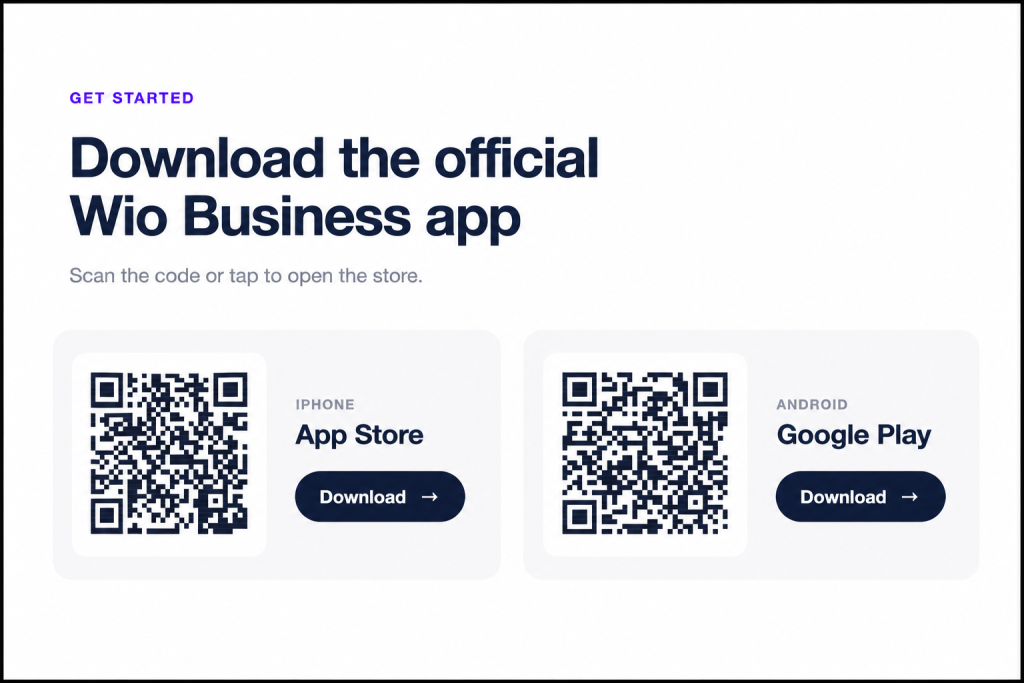
Step 1: Download the Wio Business app
Download the Wio Business app on your smartphone. Open it and select the option to start the registration process.
Step 2: Enter your personal details
Provide your name and the details requested on the registration screen.
You will also need to specify your role in the company. Depending on your position, you may register as a shareholder or owner, or as a partner or employee with the appropriate Power of Attorney.
Select the option that accurately reflects your relationship with the business.
Step 3: Select the signatory arrangement
Indicate whether your company requires a single signatory or multiple signatories for banking matters.
Choose the arrangement that reflects your company’s authorised signing requirements.
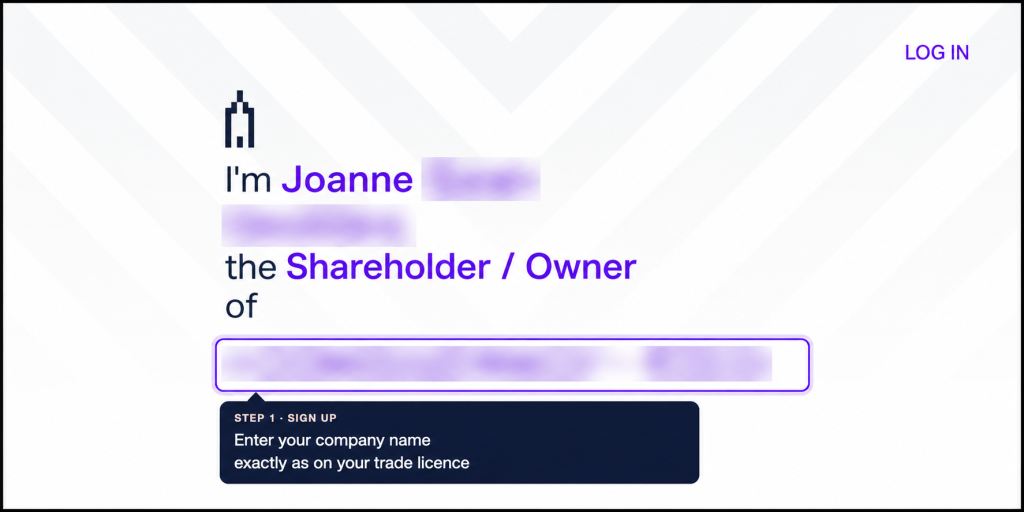
Step 4: Enter your company’s registered name
Enter the company name exactly as it appears on your trade licence. Check the spelling and legal name before proceeding.
You will also be asked to accept the applicable terms and conditions. Review the Key Facts Statement and the relevant agreements before confirming your acceptance.
Step 5: Review the business eligibility requirements
Review the list of business activities that may be excluded from opening an account. Check that your company’s activities fall within the categories Wio Business accepts.
If your business activity is eligible, continue with registration.
Step 6: Create your profile
Complete the remaining profile information requested by the app. Check your entries carefully before moving to the verification stage.
How to Verify Your Email Address and Mobile Number
Wio Business uses verification steps to confirm your contact details during registration.
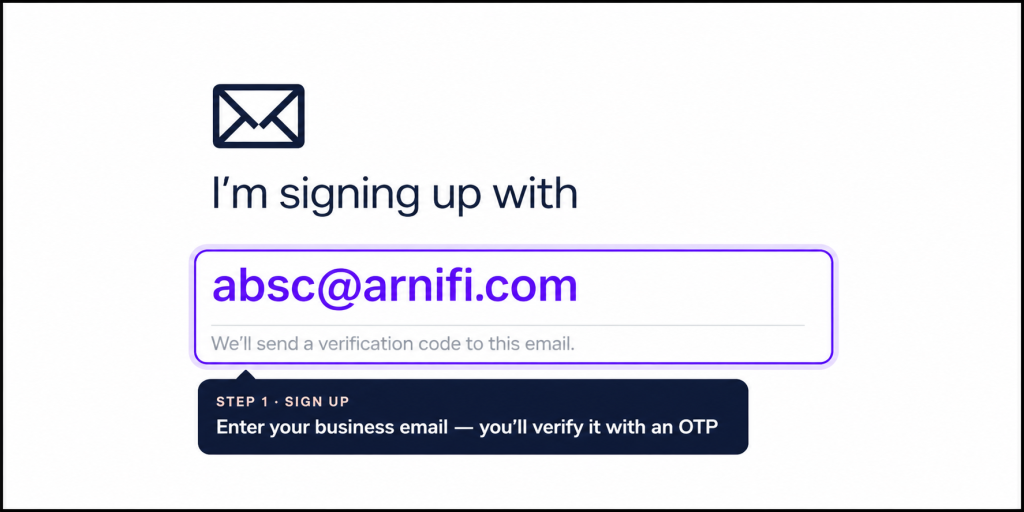
Step 7: Verify your business email
Enter your business email address. You will receive a one-time password (OTP) to verify it.
Open your email, retrieve the code and enter it in the app. If the code does not arrive, check your spam folder and confirm that you entered the correct email address.
Step 8: Verify your UAE mobile number
Enter your UAE mobile number and wait for the SMS verification code.
Enter the OTP when prompted. You may also be asked to select the WhatsApp number on which you would like to receive alerts.
Make sure your contact details are correct so you can receive account-related notifications.
Step 9: Create your password
Set a password that meets the app’s security requirements. Follow the instructions displayed on the screen and keep your login credentials secure.
How to Enter the Arnifi Referral Code C171
During registration, you can enter the Arnifi referral code to link your application to Arnifi for priority support.
Follow these steps:
- Locate the referral code field in the app
- Enter C171 exactly as shown
- Check the code before continuing
- Proceed with your account application
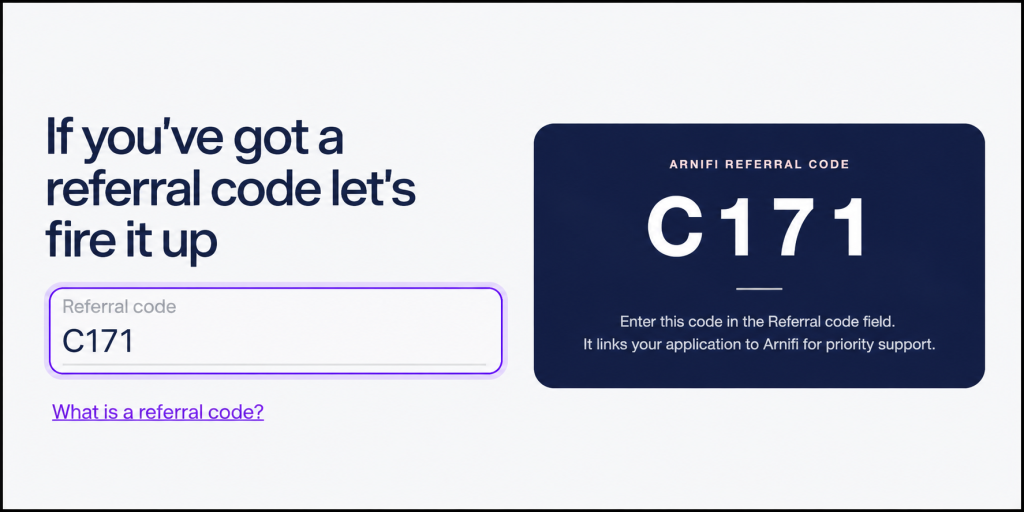
Enter the code during the registration process so it is associated with your application. If you have already moved past the referral field, check with the relevant support team to understand whether the code can still be added.
Which Wio Business Plan Should You Choose?
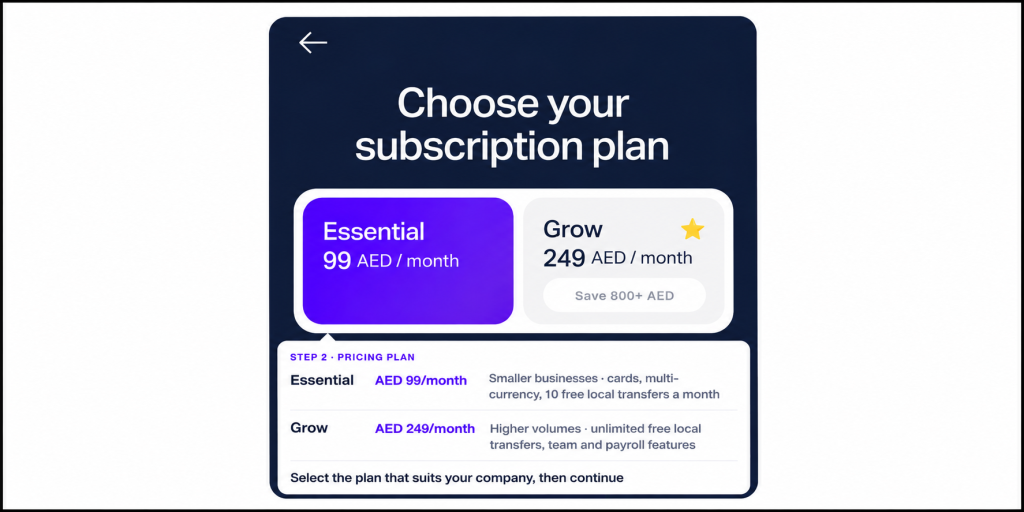
Wio Business offers different plans based on your company’s banking needs. Review the available features and monthly subscription charges in the app before making your selection.
The two plans covered here are Essential and Grow.
Step 10: Select your preferred plan
Compare the plans and choose the one that fits your business requirements.
Essential may suit a business with a lower volume of local transfers. Grow may be a better fit if your company makes frequent local transfers or needs additional team and payroll functionality.
Step 11: Select how you intend to use the account
The app may ask about the intended use of your business account. Select the options that reflect your company’s expected banking activities.
Provide accurate information, as these details help the bank understand how you plan to use the account.
How to Enter Your Company Details
The next stage involves providing information about your business, its registration and its expected financial activity.
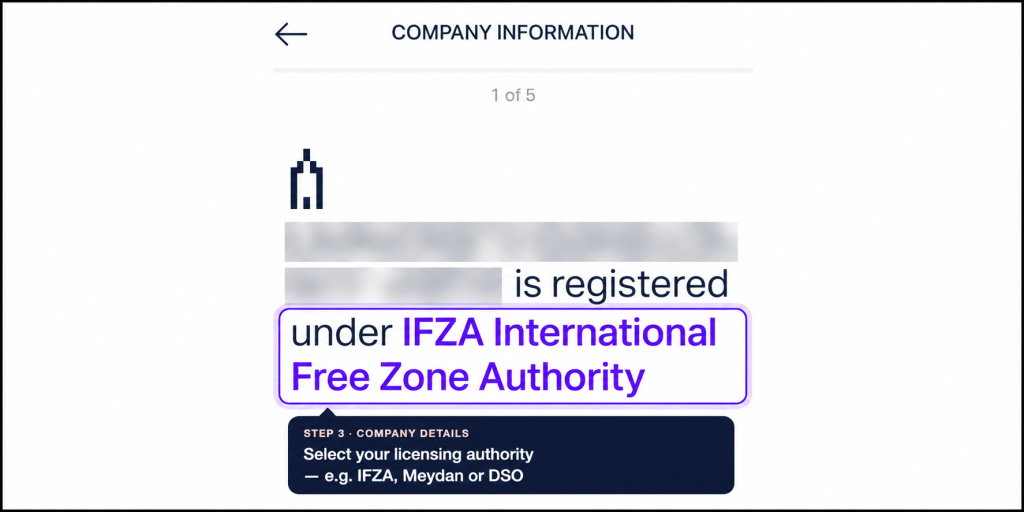
Step 12: Enter your company registration details
Provide the information requested about your company, including:
- Licensing authority, such as IFZA, Meydan or Dubai Silicon Oasis, where applicable
- Legal entity type
- Company website or social media link, if requested
- Main business activity as stated on the trade licence
- Countries in which the business operates
- Countries where the business has a legal or physical presence
Use the details on your official company documents wherever applicable. Ensure the business activity you select matches the activity listed on your licence.
Step 13: Provide your estimated annual turnover
Enter the company’s estimated annual turnover based on its expected or current business activity.
Choose the most accurate option available in the app. Avoid selecting an estimate simply because it appears convenient.
Step 14: Declare your source of funds
Provide details about where the money entering your business account is expected to come from. This could depend on the nature of your company’s operations and the information requested by the bank.
Answer the questions accurately and make sure your responses reflect your business model.
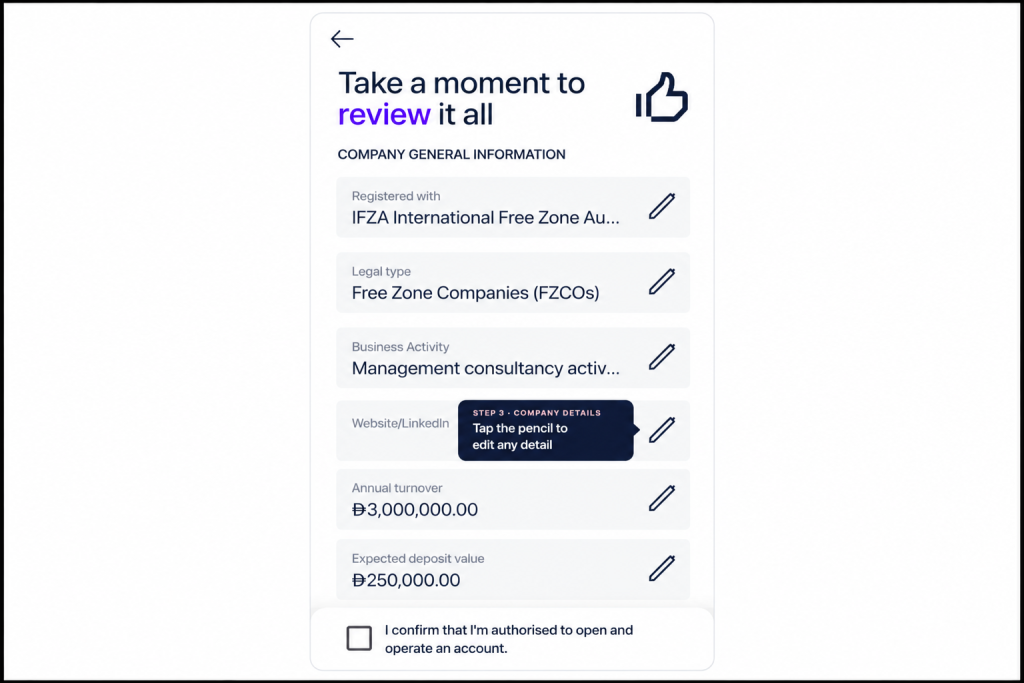
Step 15: Enter your expected deposits and withdrawals
You may be asked to estimate:
- Monthly deposits into the account
- The expected proportion of cash deposits
- Monthly withdrawals
- The expected proportion of cash transactions
Use realistic estimates based on your company’s anticipated financial activity.
If you need to correct an answer, use the editing option available on the screen. Review your changes and confirm the information before proceeding.
Which Documents Are Required to Open a Wio Business Account?
Wio Business may request different documents depending on your company structure, authorisation arrangements and application details.
Prepare the relevant documents before submitting your application.
| Document | Purpose |
| UAE trade licence | Confirms the company’s registration and licensed business activities |
| Memorandum of Association (MoA) | Provides information about the company’s ownership and structure, where applicable |
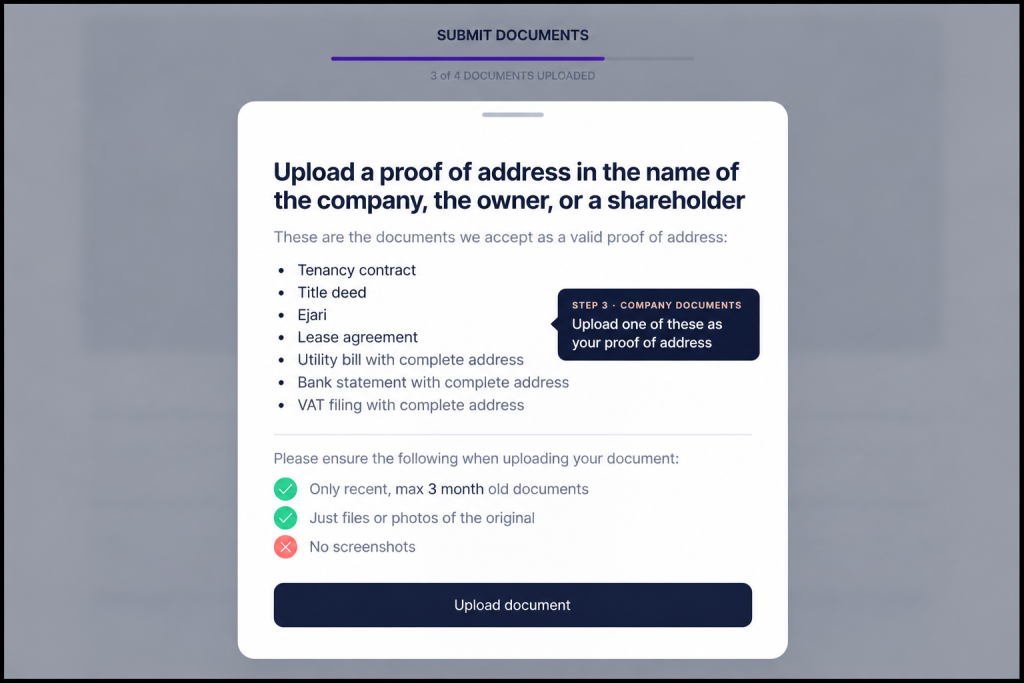
| Proof of address | Supports the company’s address details in the form accepted by the bank |
| Power of Attorney or board resolution | Establishes the applicant’s authority to handle banking matters when required |
The app will guide you through the documents required for your particular application. Follow the instructions displayed on each upload screen.
Step 16: Confirm your workspace type
Select the workspace arrangement that applies to your business. Options may include a private office, warehouse, flexi-desk, virtual office or coworking space.
Choose the option that accurately reflects your company’s setup.
Step 17: Confirm your banking authority
Check whether the company’s MoA authorises you to handle banking matters.
If it does not provide the required authority, you may need to upload a Power of Attorney or board resolution, depending on your company’s circumstances and the bank’s requirements.
Step 18: Upload your company documents
Upload the documents requested by the app. These may include your trade licence, MoA, proof of address and evidence of banking authority where applicable.
Before submitting each file, check that:
- The document is legible
- The information matches the details entered in the application
- The document is complete and valid
- The file meets the app’s upload requirements
After uploading the requested documents, review the submission and continue.
How to Complete Identity Verification
Wio Business also requires identity verification as part of the application process.
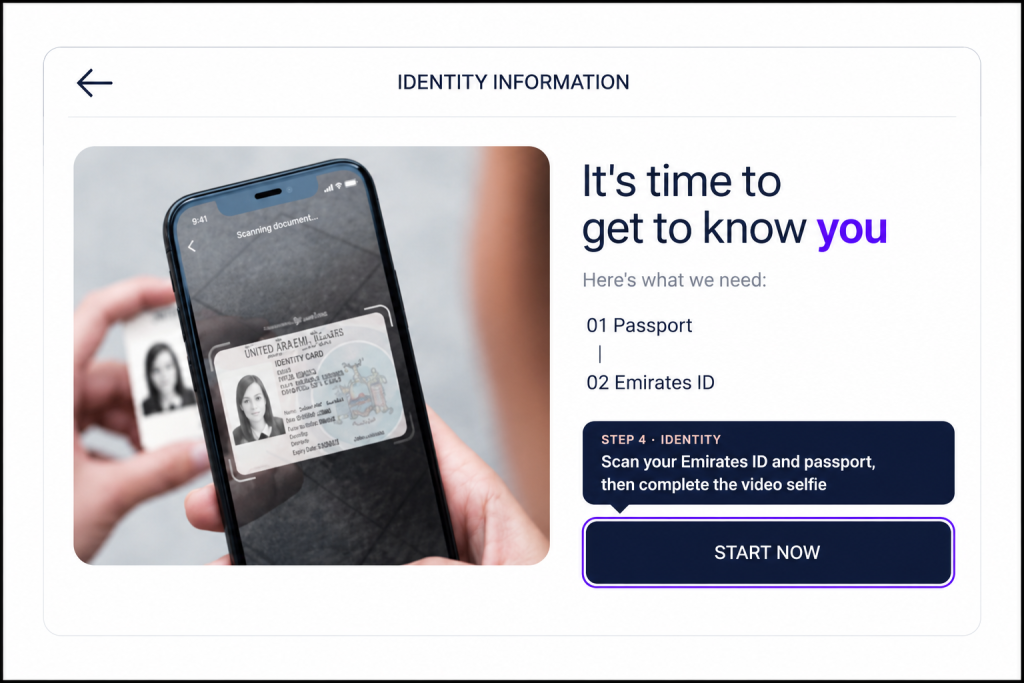
Step 19: Verify your Emirates ID
Follow the on-screen instructions to scan your Emirates ID. Position the document as directed and make sure the details are clearly visible.
If the app cannot read the document, try again with adequate lighting and a clear view of the card.
Step 20: Verify your passport
Scan your passport as instructed. Check that the information is readable and that the document details match the personal information you supplied earlier.
Step 21: Complete the video selfie
Follow the instructions to complete the video selfie or facial verification step.
Make sure your face is clearly visible and follow any movements or prompts displayed on the screen.
How to Add Business Partners to Your Application
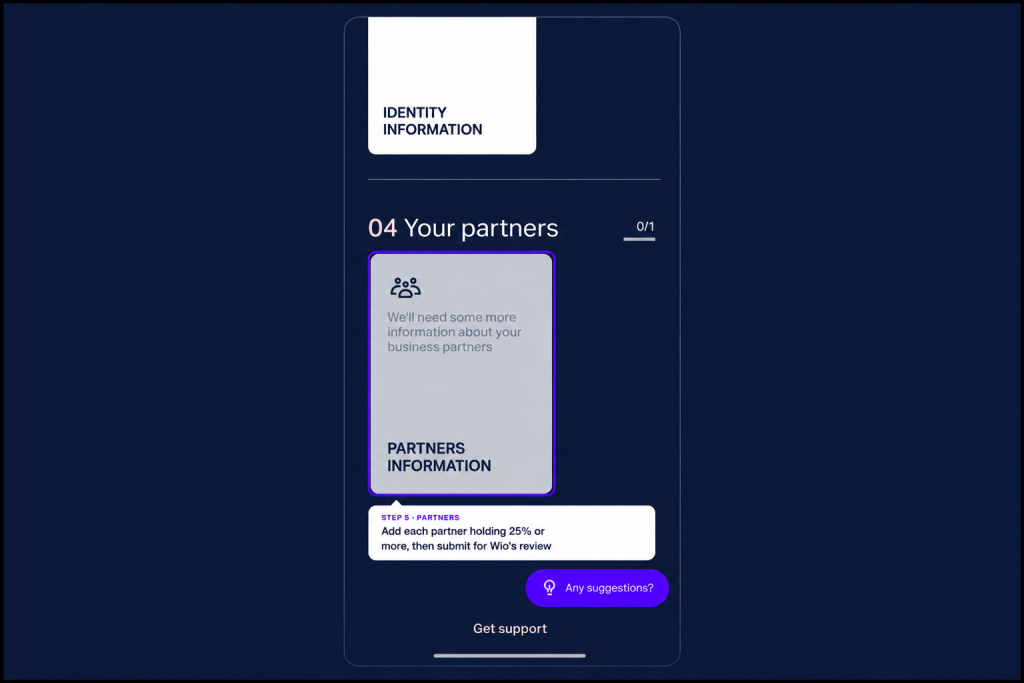
Wio Business may ask you to provide information about partners who hold 25% or more of the company.
Step 22: Add the relevant partners
Enter the details requested for each qualifying partner. Check the ownership information against your company records before continuing.
If your company has multiple qualifying partners, provide the required information for each of them.
Step 23: Review and submit your application
Before submitting, review the details you have provided throughout the application.
Check your personal information, company details, financial estimates, uploaded documents and partner information. Correct any errors you identify.
Once you are satisfied that the information is accurate, submit the application through the app.
Submitting your application does not guarantee approval. Wio Business may request further information or documents during its review. Keep an eye on your registered email address, mobile number and app notifications for updates.
What Happens After You Submit Your Wio Business Application?
After submission, your application will go through the bank’s review process. The bank may contact you if it needs additional information or clarification.
To avoid unnecessary delays:
- Keep your phone and email accessible
- Respond to requests for additional information promptly
- Provide clear, valid documents when requested
- Check that your company and ownership details remain consistent across the application
- Follow any instructions provided by Wio Business during the review
The time required for approval can vary depending on the application and any additional checks required. Wait for confirmation from Wio Business before assuming your account is ready to use.
FAQs
1. Can I open a Wio Business account through the mobile app?
Yes. Eligible businesses can apply through the Wio Business mobile app by providing their company details, submitting the required documents and completing identity verification.
2. What documents do I need to open a Wio Business account?
You may need your UAE trade licence, Emirates ID, passport, proof of address and MoA. A Power of Attorney or board resolution may also be required, depending on your company’s banking authorisation arrangements.
3. What is the Arnifi referral code for Wio Business?
The Arnifi referral code is C171. Enter it in the referral code field during registration to link your application to Arnifi for priority support.
4. How much does a Wio Business account cost?
The Essential plan is listed at AED 99 per month and the Grow plan at AED 249 per month. Check the app for the latest subscription charges, plan features and applicable fees before selecting a plan.
5. Do I need a UAE mobile number to register?
The registration process includes UAE mobile number verification by SMS. You should have access to the mobile number you provide during the application.
6. Can I apply if I am not the company’s sole owner?
The application process includes options for different roles and signatory arrangements. You may need to provide evidence of your authority to manage banking matters. Follow the requirements displayed in the app for your company structure.
7. Does submitting the application guarantee approval?
No. Wio Business reviews applications and may request additional information or documents before making a decision.
8. What should I do if my application needs more documents?
Check the notifications or communication received from Wio Business and submit the requested information. Ensure that all documents are clear, valid and consistent with your application details.
Conclusion
Opening a Wio Business account through the app involves several stages, from registration and plan selection to document uploads and identity verification. Preparing your company information in advance can make the process easier.
When you register, enter the Arnifi referral code C171 to link your application to Arnifi for priority support. Check every detail before submitting your application, and respond promptly if Wio Business requests further information.
References
Top UAE Packages
Related Articles


Top UAE Packages
Get in Touch
